Author Knowledge Base

How to Upload a Book & Create a Campaign

A comprehensive, step-by-step visual walkthrough to setting up your Advance Review Copy (ARC) campaign. Learn to upload manuscripts, protect files, and filter applicants.

1Step 1 of 12

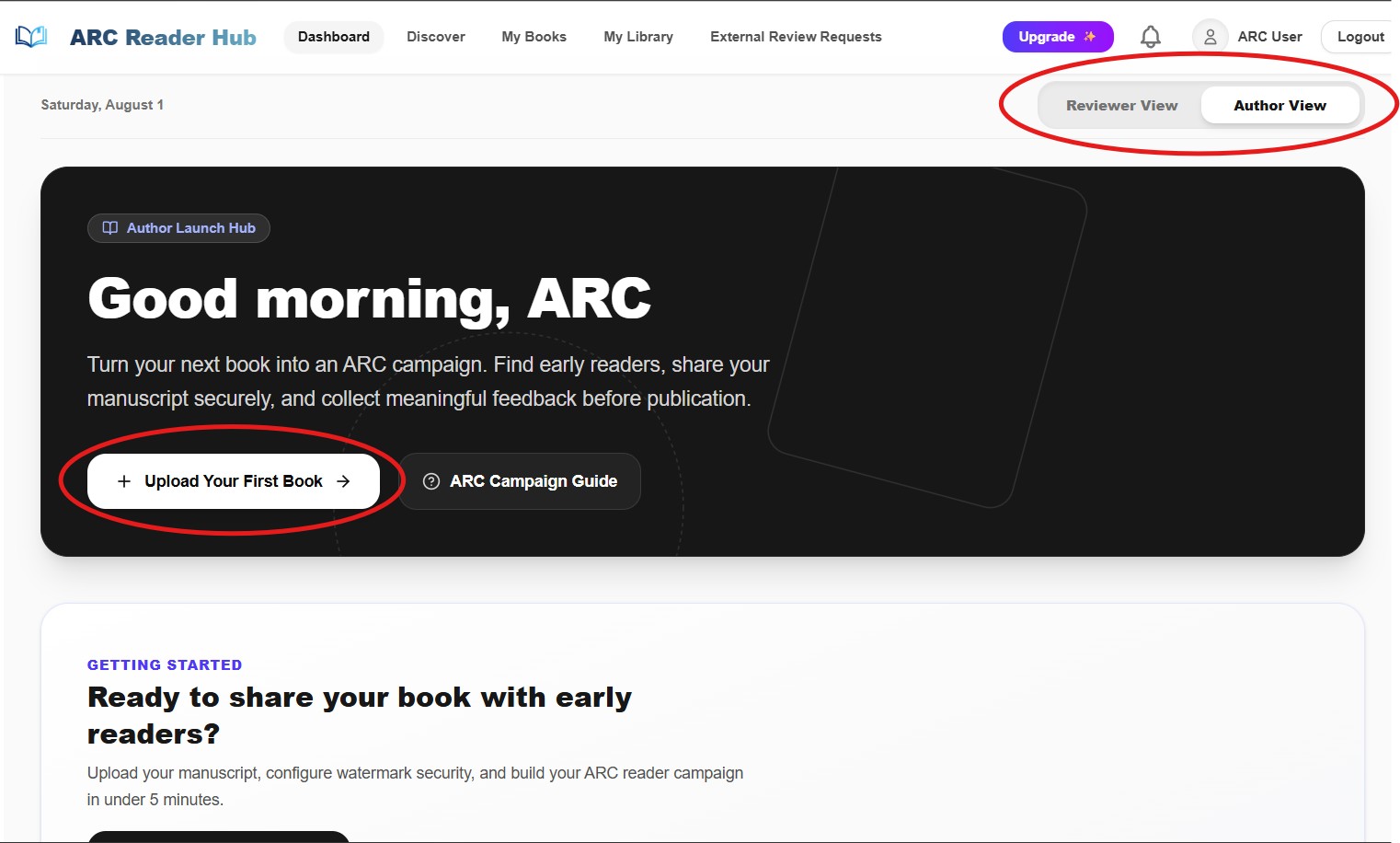
Switch to Author View

Access the author dashboard and begin the campaign creation process.

  • Locate the profile switcher at the top right of your dashboard.
  • Select "Author View" to load the author tools and dashboard metrics.
  • Click the "Upload New Book" button in the My Books section to open the campaign builder.
arcreaderhub.com/dashboard/campaigns/new
Switching to Author View on the dashboard
2Step 2 of 12

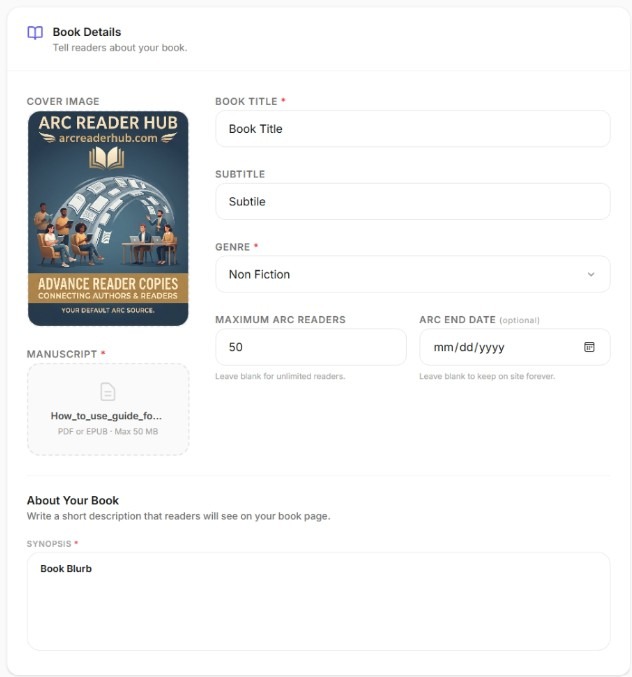
Provide Book Title & Cover Image

Initialize your book profile with a title and eye-catching cover art.

  • Enter the official title of your book in the "Book Title" field.
  • Upload a cover image by clicking the designated area. Supported formats are JPEG, PNG, and WEBP (max 5 MB).
  • Choose a high-resolution, compelling cover, as this is the first thing reviewers will see.
arcreaderhub.com/dashboard/campaigns/new
Adding title and cover image in basic information section
3Step 3 of 12

Upload Manuscript & Fill Metadata

Provide details about your book and upload your file securely.

  • Upload your manuscript in PDF or EPUB format (max 50 MB) under the "Manuscript" field.
  • Fill in optional but helpful details: Subtitle, Genre, Language, and Page Count.
  • Set the scheduling parameters by selecting the "ARC Start Date" and "ARC End Date" for your campaign.
arcreaderhub.com/dashboard/campaigns/new
Entering metadata and uploading the manuscript file
4Step 4 of 12

Configure Campaign Settings

Customize visibility, reader access, and reviewer caps for your campaign.

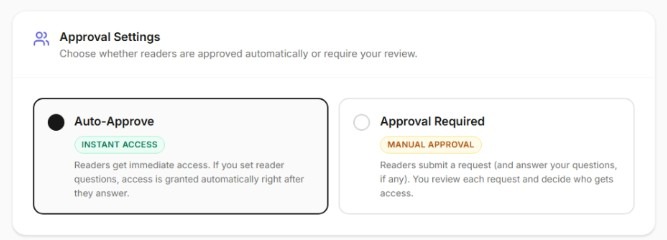
  • Visibility (Public vs. Private): Select Public to let any reader join instantly. Select Private to review and manually approve applicants.
  • Reading Access (Read in Browser Only vs. Allow File Access): Use Browser Only to keep files secure inside our online reader, or Allow File Access to permit direct downloads.
  • Maximum Reviewers: Enter a limit for the number of participants, or leave it empty for unlimited reviewer sign-ups.
Author TipWe recommend "Read in Browser Only" for high-security campaigns to prevent unauthorized distribution of your manuscript.
arcreaderhub.com/dashboard/campaigns/new
Configuring visibility, reading access, and reviewer caps
5Step 5 of 12

Add a Compelling Book Description

Enter your synopsis or blurb to hook prospective reviewers.

  • Scroll down to the "Book Description" card.
  • In the "Synopsis" editor, write a detailed and engaging blurb of your book.
  • Make it persuasive to encourage high-quality reviewers to apply for your campaign.
arcreaderhub.com/dashboard/campaigns/new
Providing book synopsis in the description section
6Step 6 of 12

Enable Reader Applications (Vetting)

Add screening questions for private campaigns to select the right readers.

  • Ensure your campaign is configured as "Private" in Step 4.
  • Check the box "Require readers to complete an application before requesting access" under Reader Application.
  • This activates the custom questionnaire builder below the checkbox.
arcreaderhub.com/dashboard/campaigns/new
Enabling reader application requirement checkbox
7Step 7 of 12

Import Questions from Previous Books

Re-use successful screening questionnaires from your previous campaigns.

  • If you have already created a campaign before, click the "Choose Previous Book" dropdown.
  • Select a prior book title to import its entire questionnaire structure.
  • All saved questions will automatically populate, saving you from setting them up manually.
arcreaderhub.com/dashboard/campaigns/new
Selecting previous book to clone reader application questions
8Step 8 of 12

Quick Add Default Questions

Instantly add common reviewer screening questions with a single click.

  • Look at the "Quick Add" buttons under the import tool.
  • Click on question pills like "+ Have you reviewed similar book...", "+ Where do you usually post reviews...", or others.
  • These questions will immediately append to your active questionnaire layout.
arcreaderhub.com/dashboard/campaigns/new
Using Quick Add list to append common questions
9Step 9 of 12

Add a Custom Question

Create unique questions tailored to your genre or specific reviewer criteria.

  • Scroll to the bottom of your questions stack.
  • Click the "+ Add Question" button.
  • A new blank question card will appear, ready for configuration.
arcreaderhub.com/dashboard/campaigns/new
Clicking the Add Question button
10Step 10 of 12

Select Question Response Type

Choose the input format that matches the type of answer you need.

  • On the new question card, open the "Question Type" dropdown menu.
  • Select from available formats: Short Text (one-line answers), Paragraph (detailed stories), Multiple Choice (choose one option), or Checkboxes (choose multiple options).
arcreaderhub.com/dashboard/campaigns/new
Selecting question input formats from the dropdown
11Step 11 of 12

Configure Question Logic & Requirements

Specify choices, make questions mandatory, or manage duplicates.

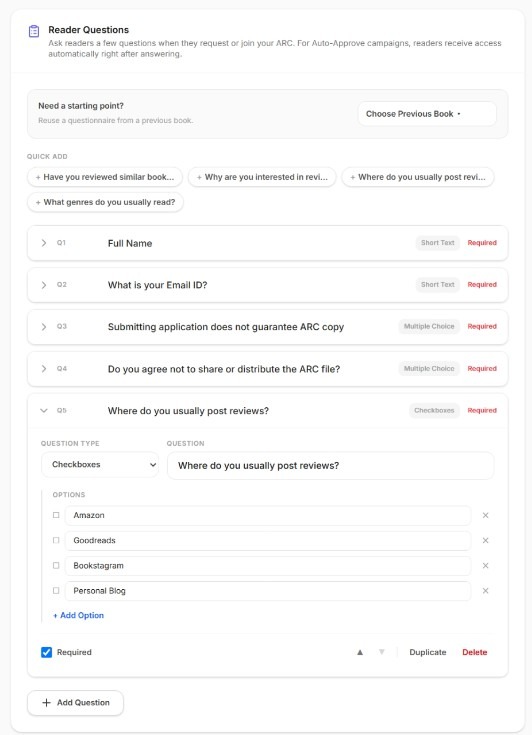
  • Type your question wording in the prompt input field.
  • For Multiple Choice or Checkboxes, add the options (e.g., "Yes", "No") by clicking "+ Add Option".
  • Check the "Required" box at the bottom left of the card to make it mandatory.
  • Use the control buttons to shift ordering, duplicate the layout, or delete the question.
arcreaderhub.com/dashboard/campaigns/new
Configuring question options, toggling required, and editing choice values
12Step 12 of 12

Finalize and Upload Your Campaign

Publish your campaign and open your book for reader applications.

  • Review your entered basic details, access options, synopsis, and screening questions.
  • Click the black "Upload Book" button at the bottom of the page.
  • The book will process and launch your campaign based on your specified start date.
arcreaderhub.com/dashboard/campaigns/new
Clicking the Upload Book button to save and run the campaign

Ready to launch your campaign?

Set up your author profile, add your upcoming books, and start receiving secure applications from active ARC reviewers today.